3 Lesser-Known Windows Fixes That Outperform a Factory Reset
Introduction: Why a Factory Reset Isn't Your Only Option
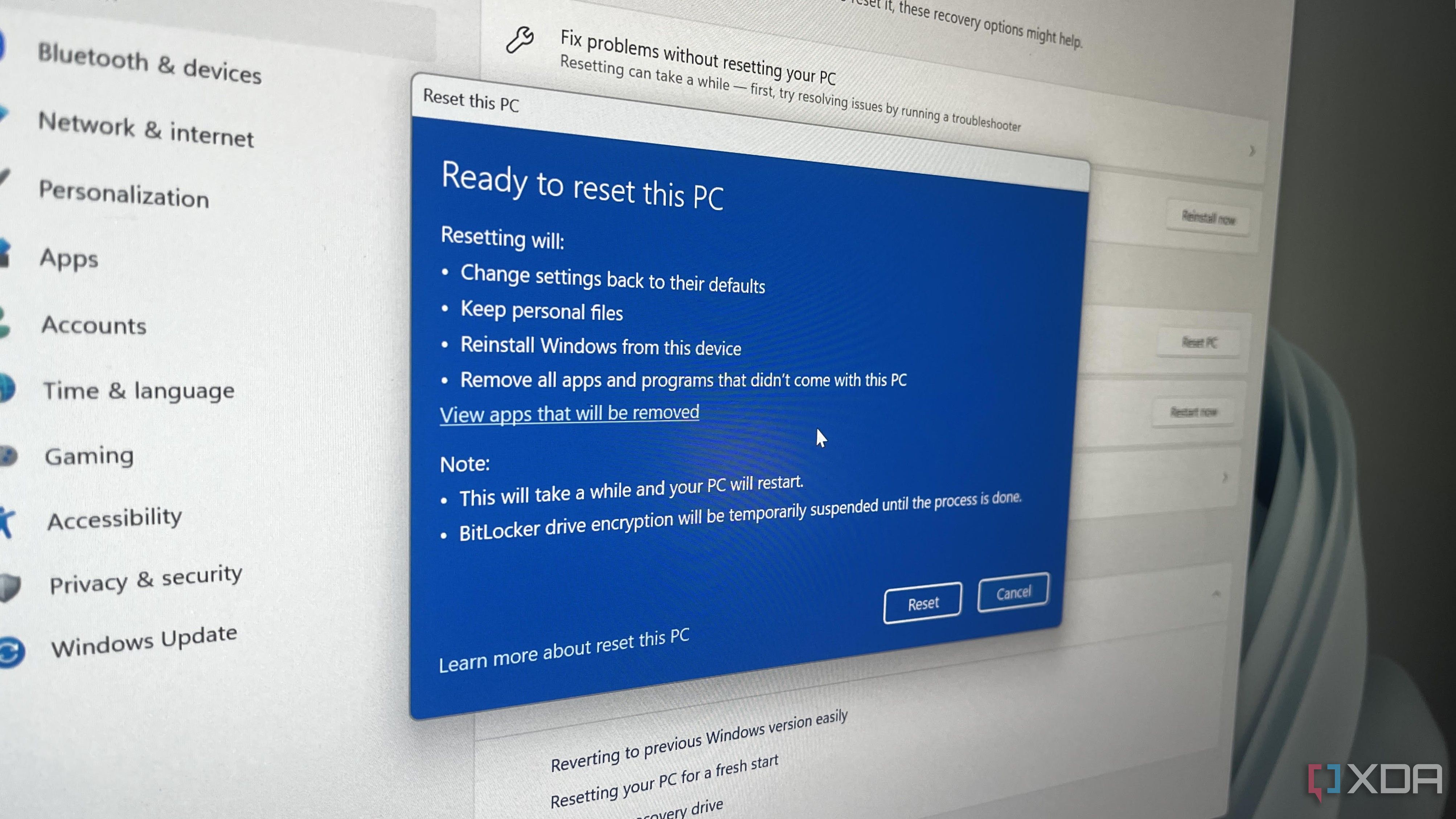
When Windows starts misbehaving—random crashes, blue screens, or sluggish performance—the first remedy that comes to mind is often a factory reset. While this nuke-and-pave approach does work, it comes at a steep cost: you lose all installed applications, personalized settings, and any files you forgot to back up. Reinstalling apps might only take ten minutes, but reconfiguring every tweak you’ve made to Windows can eat up hours. Fortunately, Windows hides three powerful tools that can resolve many issues without the baggage of a full reset. These built-in utilities target specific problems, preserving your data and customizations while restoring stability. Let’s explore them.
Fix #1: System Restore – Roll Back Without Losing a Thing
System Restore is a time machine for your system files and registry. It creates snapshots—called restore points—before major changes like driver installations or Windows updates. If your PC starts acting up after such an event, System Restore can revert system files, executables, and registry settings to an earlier state—without touching your personal documents, photos, or installed apps.
How to Use System Restore
- Type Create a restore point in the Start menu and open the System Properties dialog.
- On the System Protection tab, click System Restore.
- Select a restore point dated before your issues began, then follow the prompts.
This method is perfect for undoing driver conflicts, problematic updates, or registry corruption. It’s especially handy when you suspect a recent change caused the problem, but you don’t want to lose your personal workspace.
Fix #2: DISM and SFC – Repair Corrupted System Files
Sometimes Windows becomes unstable because critical system files are damaged or missing. Enter two command-line champions: Deployment Imaging Servicing and Management (DISM) and the System File Checker (SFC). These tools scan for corruption and repair or replace affected files using a healthy copy stored in the Windows image.
Step-by-Step Repair Process
- Open Command Prompt as Administrator (right-click Start, select Windows Terminal (Admin)).
- Run DISM /Online /Cleanup-Image /RestoreHealth to fix the component store corruption.
- After DISM finishes, run sfc /scannow to repair individual system files.
This combo addresses persistent errors, missing DLLs, and even boot issues—all while keeping your apps and personal data intact. It’s like performing a surgical repair instead of demolishing the entire house.
Fix #3: In-Place Upgrade Using Windows Installation Media
The most powerful hidden fix is an in-place upgrade, also known as a repair install. It reinstalls Windows on top of your existing installation, replacing the OS while preserving your files, settings, and applications. Unlike a factory reset, this method doesn’t wipe out your installed software or personal data.

How to Perform an In-Place Upgrade
- Download the Windows Media Creation Tool from Microsoft’s website.
- Run the tool and select Upgrade this PC now.
- On the Choose what to keep screen, select Keep personal files and apps.
- Let the process complete—it may take an hour, but your data remains safe.
This fix is ideal when Windows is deeply corrupted, stuck in a boot loop, or infected with malware that conventional tools can’t touch. It effectively gives you a fresh system without the headache of reinstalling every program.
When Should You Still Consider a Factory Reset?
These three tools cover most common Windows headaches, but they aren’t magic bullets. A full factory reset (or clean install) becomes necessary in extreme cases like:
- Hardware failure that corrupts the OS beyond repair.
- Persistent malware that survives an in-place upgrade.
- You want to wipe the system before selling or donating the PC.
Conclusion: Master These Hidden Gems
The next time Windows acts up, resist the urge to reach for the factory reset button. Remember these three hidden fixes: System Restore, DISM and SFC, and the in-place upgrade. Each targets a different root cause, and together they can resolve the vast majority of issues without the pain of starting from scratch. Keep these tools in your troubleshooting arsenal—you’ll be glad you did.
Related Articles
- How to Automate Your Code Analysis with GitHub Copilot Agents
- 10 Ways Claude Code’s Persistent Memory Supercharges Your Development Workflow
- Mastering Python Fundamentals: A Comprehensive Guide to Key Concepts
- The Ultimate Guide to Unlocking Free Rewards in Far Far West
- 5 Key Facts About GDB Source-Tracking Breakpoints That Will Revolutionize Your Debugging
- Beyond Content Filtering: How TealTiger v1.2 Enforces AI Agent Governance with Deterministic Policy Evaluation
- Spotify Unveils Conversational Ads API Interface Powered by Claude AI — No Code Required
- How to Set Up Continuous Profiling at Scale with Pyroscope 2.0