Essential Security Updates for Legacy Apple Devices: What You Need to Know
On May 11, Apple issued a series of critical security patches targeting older iPhones, iPads, and Macs running outdated operating systems. These updates address multiple severe vulnerabilities, including flaws in WebKit, kernel access, Wi-Fi, and sandbox protections. Even devices released over a decade ago are covered, ensuring extended protection for users who haven't upgraded to the latest hardware or software. Below, we answer key questions about these security releases.
What recent security updates did Apple release for older devices?
On Monday, Apple pushed a major round of security updates specifically for older iPhones, iPads, and Macs. These patches are critical because they fix vulnerabilities that could allow attackers to execute arbitrary code, gain elevated privileges, or bypass security mechanisms. The updates cover devices running legacy operating systems that are no longer on the latest version, ensuring that even users with older hardware receive essential protection. Apple continues to support devices more than a decade old, demonstrating a commitment to long-term security. The updates include both iOS and iPadOS versions for iPhones and iPads, as well as macOS updates for Macs dating back several years.
Which specific vulnerabilities were addressed?
Apple's security advisories detail flaws in several critical components, including WebKit (the browser engine), kernel (core operating system), Wi-Fi networking, sandbox protections, privacy systems, and file handling frameworks. These vulnerabilities could enable attackers to crash apps, gain kernel-level access, or leak sensitive data. For example, WebKit flaws could allow malicious web content to execute code, while kernel vulnerabilities might let an attacker gain full system control. The Wi-Fi issues could be exploited over the air, and sandbox escapes could bypass app restrictions. Apple has not reported active exploitation, but urges users to install updates promptly.
Which operating system versions received the patches?
The security updates cover a wide range of legacy operating systems. For iPhones and iPads, the releases include iOS 15.8.8, iOS 16.7.16, iOS 18.7.9, iPadOS 17.7.11, and iPadOS 18.7.9. For Macs, updates were pushed for macOS Sonoma 14.8.7, macOS Sequoia 15.7.7, and macOS Tahoe 26.5. These versions correspond to devices that are no longer supported by the latest major OS updates but still receive critical security fixes. For instance, iOS 15.8.8 targets older iPhone models like the iPhone 6s and 7, while macOS Tahoe 26.5 supports even older Macs.
Why does Apple continue to support devices over a decade old?
Apple's decision to patch devices released more than 10 years ago stems from a long-standing commitment to user security and privacy. Many users hold onto older iPhones, iPads, or Macs due to cost, compatibility needs, or personal preference. By shipping updates for legacy operating systems, Apple ensures that these devices remain safe from known vulnerabilities, even if they cannot run the latest iOS or macOS. This approach also reduces the risk of botnets or malware targeting outdated systems. While performance may degrade over time, security patches help extend the useful life of older hardware, aligning with environmental sustainability goals and customer satisfaction.
How can users update their older devices to receive these fixes?
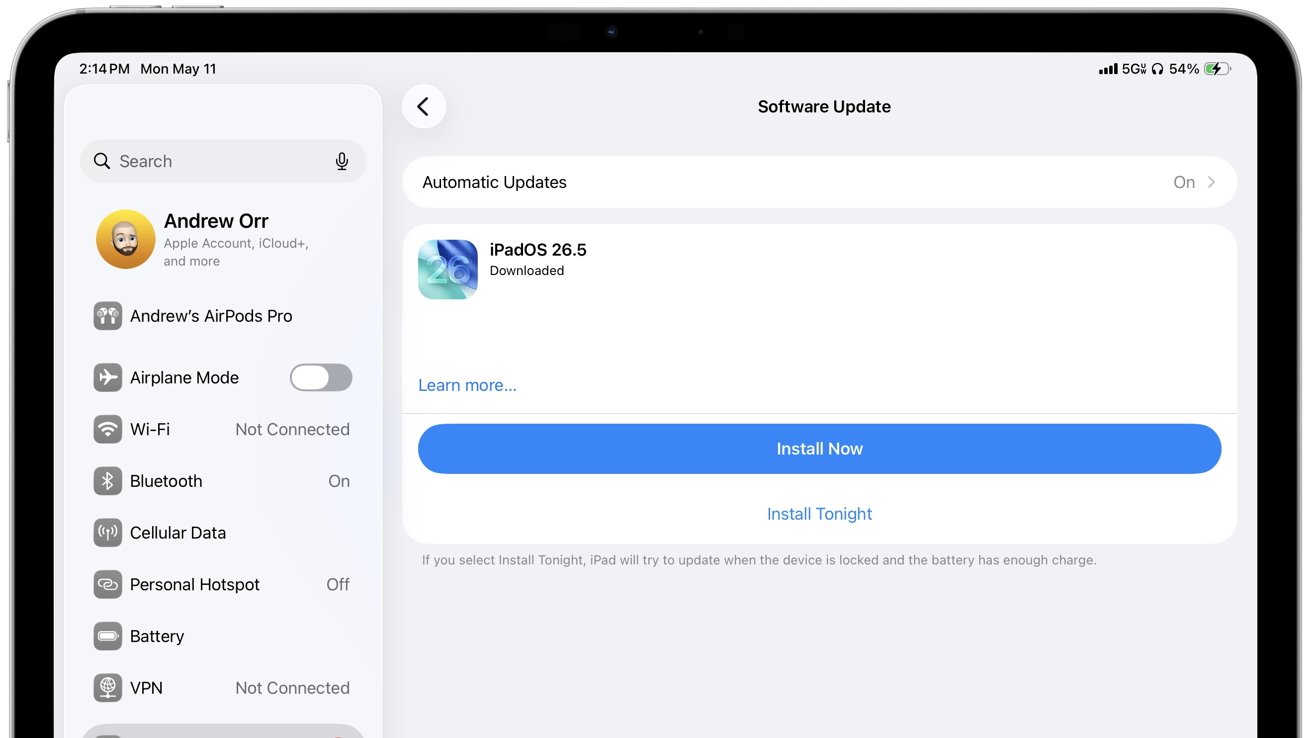
To install the security updates, users should navigate to Settings > General > Software Update on their iPhone or iPad. For Macs, go to System Settings > General > Software Update (or System Preferences on older macOS versions). The patches will appear as available updates if the device is compatible. It's crucial to back up data before updating, although the process is generally seamless. Users should also ensure they are connected to Wi-Fi and have sufficient battery life. Apple recommends installing updates immediately to mitigate potential risks. If the update doesn't appear, the device may have reached end-of-life, but Apple's list of supported models is extensive for these releases.

What is WebKit and why are its flaws critical?
WebKit is Apple's open-source browser engine used by Safari, Mail, and other apps that render web content. Flaws in WebKit are particularly dangerous because they can be triggered simply by visiting a malicious website or clicking a link. Attackers can exploit these bugs to execute arbitrary code, steal cookies, or even take control of the device. Because WebKit processes untrusted data from the internet, any vulnerability poses a high risk to user privacy and security. Apple frequently patches WebKit in security updates, and the latest fixes address multiple memory corruption and code execution issues that could be used in zero-click attacks. Users should update their browsers and operating systems to stay protected.
Are there any known active attacks exploiting these vulnerabilities?
As of the release date, Apple has not disclosed any reports of active exploitation for the vulnerabilities patched in these updates. However, the company rates many of them as critical and advises all users to apply the updates as a precaution. Security researchers often discover flaws before malicious actors, and Apple regularly incorporates fixes into its iOS and macOS security updates. The lack of reported attacks does not mean the risk is minimal; sophisticated threat actors may develop exploits later. Installing patches promptly remains the best defense. Users on older devices are especially vulnerable because they may miss updates, making these targeted fixes vital for maintaining device integrity.
What should users do after updating?
After applying the security updates, users should verify that their device is running the patched version. Go to Settings > General > About (iPhone/iPad) or About This Mac > Software Update (Mac) to confirm the installed OS version. Additionally, users should restart their device if prompted. For ongoing safety, enable automatic updates in settings so future patches install seamlessly. Consider reviewing other security settings such as Face ID/Touch ID and Find My features. If you encounter any issues after updating, check Apple's support forums or contact Apple Support. Finally, educate family members or colleagues with older devices about the importance of applying these updates, as many users may ignore notifications.
Related Articles
- Flutter 3.44 to Default to Swift Package Manager, Ending CocoaPods Era
- Xteink eReaders: Custom Firmware Clampdown and a Fresh Android Device
- BIOS Settings Overload: Experts Warn Most Toggles Are 'Noise', Critical Ones Often Overlooked
- Revolutionizing Calls: 8 Key Enhancements in iOS 26's Phone App
- Unlock Your Amazon Fire Tablet's Full Potential with Fire Toolbox
- Snapseed 4.0 for Android: A Major Overhaul Ends Years of Silence
- 8 Crucial Insights: Flutter’s Swift Package Manager Migration and What It Means for You
- How to Decode the Pixel 11 Pro and XL Leak: Camera Upgrades, 'Pixel Glow' LED, and More