Navigating the Google Family Link Call Blocking Bug: Step-by-Step Fixes
Introduction
Google's Family Link is designed to give parents control over their children's smartphone usage, offering peace of mind. However, a recent bug has turned this tool into a source of frustration for many families. Users report that supervised devices are unable to make outgoing calls, while incoming calls and messages work normally. The issue was first highlighted in a Reddit post, where a parent described seeing an error message: "Calls can't be placed by System Parental controls. Try using a different call redirecting app or contacting the developer for help." Fortunately, some temporary workarounds exist, though they are inconsistent and may not work for all accounts, especially those for children under 13. This guide will walk you through the steps to try to restore outgoing call functionality while waiting for Google's official fix.
What You Need
- Access to the supervised device (the child's phone) and the parent's device with the Family Link app installed.
- Parental account credentials (Google account used to set up supervision).
- Patience – workarounds are temporary and may not work for everyone.
- Alternative communication apps (e.g., WhatsApp, Messenger) for outgoing calls if all else fails.
- Optional: A second device to test incoming and outgoing calls after each step.
Step-by-Step Workarounds
Step 1: Toggle Supervision On and Off
The most commonly reported fix is to temporarily remove supervision and then re-add it. Follow these steps:
- On the parent device, open the Family Link app.
- Select the child's account from the main screen.
- Tap Manage settings > Account info > Stop supervision. Confirm the action.
- Wait 2–3 minutes for the device to sync. Then, go back to the same screen and tap Start supervision to re-enable it.
- Test outgoing calls on the child's device. If successful, the fix is temporary; repeat if the problem returns.
Note: This workaround may not be available for accounts where the child is under 13, as Google restricts the ability to remove supervision for younger users.
Step 2: Use a Third-Party Dialer App
If toggling doesn't work, try using a different dialer app that bypasses the system parental controls. This workaround is not ideal but can restore calling functionality:
- On the child's device, go to the Google Play Store and install a third-party dialer app like Truecaller or Dialer by Simple Mobile Tools.
- After installation, open the new dialer and grant necessary permissions (phone, contacts).
- Set it as the default dialer app: Go to Settings > Apps > Default apps > Phone app and select the new dialer.
- Try placing an outgoing call. If successful, the bug only affects the default phone app.
Warning: Some third-party apps may collect data or show ads. Use a trusted, open-source alternative if privacy is a concern.
Step 3: Clear Cache and Data of the Phone App
Corrupted app data can sometimes cause this issue. Clearing the phone app's cache and data may help:
- On the child's device, open Settings > Apps > Phone (or Dialer).
- Tap Storage & cache.
- First tap Clear cache, then Clear storage (this will reset your call history and voicemail settings).
- Restart the device and try making an outgoing call.
If the problem persists, move on to the next step.
Step 4: Update or Reinstall Family Link
An outdated version of Family Link might be the culprit. Ensure both parent and child devices have the latest version:
- On the parent device, go to Google Play Store and search for Google Family Link. If an update is available, tap Update.
- On the child's device, check for updates to Family Link parental controls (the child-side app).
- After updating, restart both devices and test outgoing calls again.
Alternatively, uninstall and reinstall Family Link on the parent device. Caution: This will remove all settings temporarily. You'll need to set up supervision again from scratch.
Step 5: Try an Alternative Communication Method
While working on a permanent fix, consider using internet-based calling apps that are not affected by the bug:
- Install apps like WhatsApp, Google Duo, or Telegram on both devices.
- Ensure both apps are allowed through Family Link’s app restrictions (you may need to approve them from the parent app).
- Test making a voice or video call through the app. This bypasses the phone's dialer and uses Wi-Fi or mobile data instead.
This is not a true phone call, but it restores voice communication for the child.
Tips for Managing the Issue
- Check emergency call capability: The bug may also block emergency calls (e.g., 911 in the US). Before relying on any workaround, ensure the child knows how to call emergency services using a different method, such as a dedicated emergency button or manually dialing from the lock screen.
- Stay informed: Google has acknowledged the bug and is working on a fix. Follow official Google support forums or the Family Link help page for updates. You can also monitor the Family Link subreddit for community solutions.
- Use multiple workarounds: Some parents combine toggling supervision with using a third-party dialer. Experiment with the order of steps to see what works for your device.
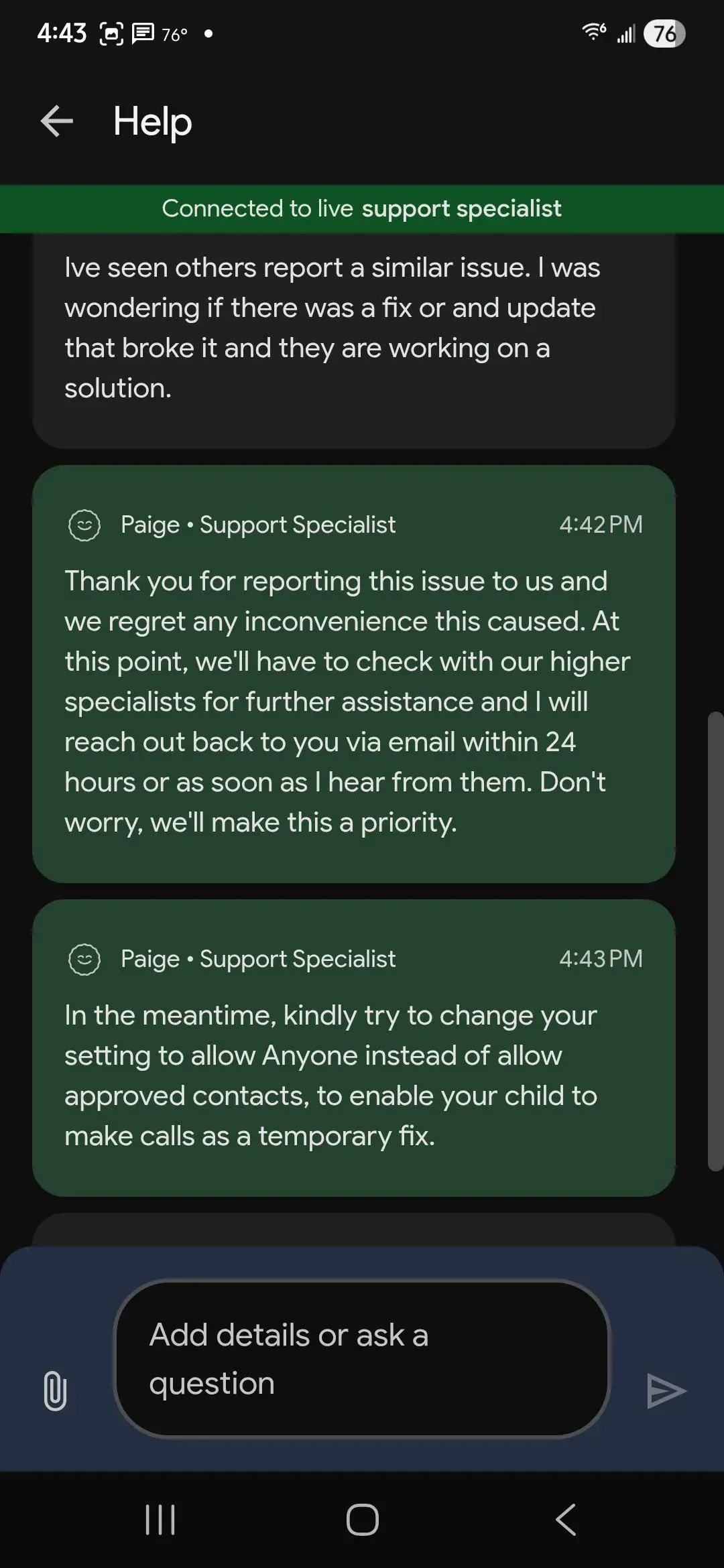
- Contact support: If all else fails, contact Google Family Link support directly via the app (Menu > Help & feedback > Contact us). Document your steps so you can provide detailed feedback.
- For children under 13: Workarounds are limited because Google restricts supervision removal. In such cases, focus on third-party dialers or alternative apps. You may also consider temporarily removing supervision if the child is about to turn 13 – but this is not available before that age.
- Back up important data: Before clearing app data or reinstalling Family Link, ensure contacts and call logs are backed up to Google Cloud or a local file to avoid losing information.
While this bug is disruptive, remember that Family Link's core intent is positive. With these workarounds, you can restore essential phone functionality until Google releases a permanent update. Stay patient and keep communication open with your child about the issue.
Related Articles
- Meta Quest Gets Official React Native Support: VR Development Simplified at React Conf 2025
- How to Manage Financial Strategy in a Hypergrowth AI Company: Lessons from Anthropic's CFO
- Apple Finally Secures Cross-Platform Messaging: End-to-End Encryption for iPhone-Android RCS Arrives in iOS 26.5
- Building Robust AI Features in Flutter: A Production-Ready Handbook
- From Snooze to Success: 5 Alarm Apps That Actually Wake You Up
- Flutter 3.44 to Default to Swift Package Manager, Phasing Out CocoaPods by 2026
- Flutter Embraces Swift Package Manager: What You Need to Know About the Upcoming Shift
- Flutter 3.44 Makes Swift Package Manager the Default: What Developers Should Do