7 Steps to Craft a Staggered Zigzag Grid with CSS Transforms
Most grid layouts are rigid and orderly, but sometimes you need a design that flows like a waterfall—where items cascade diagonally to create a dynamic, rhythmic visual. This effect, known as the zigzag layout, is achievable with a clever combination of CSS Grid and a simple transform trick. In this article, we'll break down the process into 7 actionable steps, from understanding the core concept to handling edge cases. Whether you're building a portfolio, a product gallery, or just experimenting, this technique offers a clean, accessible solution that preserves tab order and adapts to varying content.
1. The Concept of Staggered Layouts
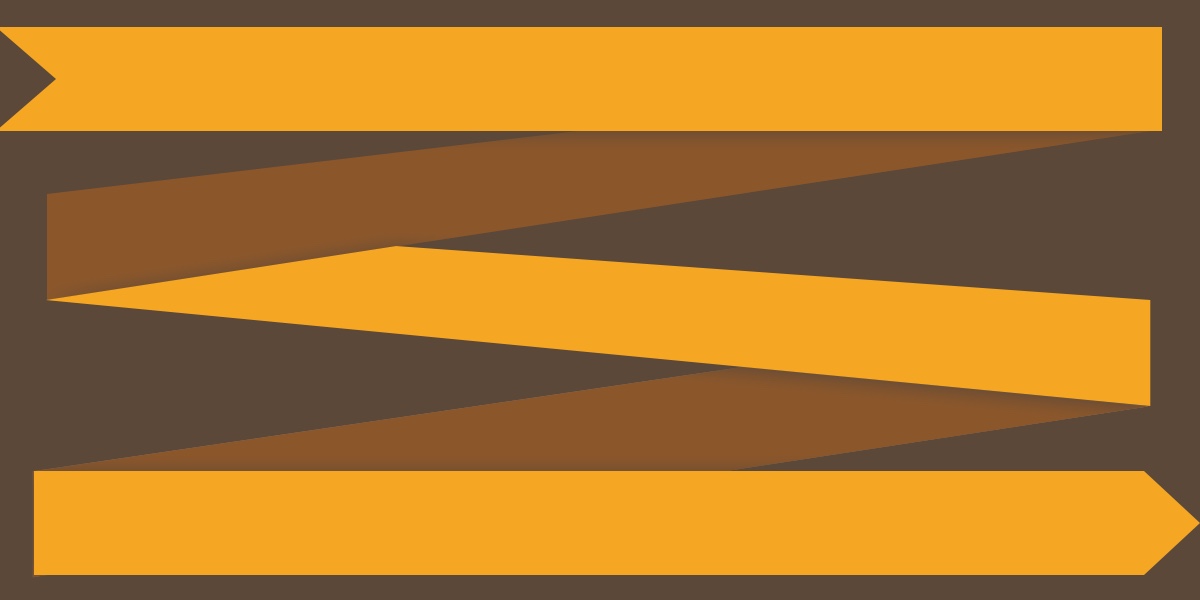
A zigzag layout arranges items in a staggered pattern—think of bricks in a wall or steps on a staircase. Unlike regular grids where elements line up perfectly, here each odd row or column shifts to create a sense of movement. In web design, this is often done with masonry layouts, which rely on JavaScript, or complex flexbox arrangements. However, our approach uses native CSS with a two-column grid and a simple translateY shift on even items. This preserves the natural document order, so screen readers and keyboard navigation flow top-to-bottom, left-to-right. The result is visually engaging and technically robust, with no JavaScript dependencies.
2. Why Flexbox Falls Short
The naive approach is flexbox with flex-direction: column and flex-wrap: wrap. While it can create a staggered look, it introduces two major problems. First, you need a fixed height on the container to force wrapping—a brittle constraint that breaks with dynamic content. Second, and more critically, tab order breaks: items flow down the first column (1, 2, 3), then jump to the second (4, 5, 6). This creates a confusing experience for keyboard users and violates the principle of natural reading order. A CSS Grid & transform solution sidesteps both issues, keeping the markup sequential and adaptive.
3. Setting Up the Grid Foundation
Start with a simple two-column grid. Wrap your items in a container with display: grid and grid-template-columns: 1fr 1fr. Add a gap for breathing room. For the demo, each item gets a fixed height (e.g., 100px) and a border. Crucially, apply box-sizing: border-box globally—otherwise the border adds extra height, breaking the precise alignment we need later. Here's the basic structure:
<div class="wrapper">
  <div class="item">1</div>
  <div class="item">2</div>
  ...
</div>
This gives you a neat two-column grid, but items still sit in perfect rows. The magic comes next.
4. Applying the Transform Shift
To create the stagger, select every even item and shift it down by half its own height using transform: translateY(50%). The 50% refers to the element's own height, so it works regardless of content size. The selector .item:nth-child(even of .item) targets items by class and index, ensuring precision even if other element types are present. This single line of CSS turns a rigid grid into a cascading waterfall. Items 2, 4, 6 drop down, while 1, 3, 5 stay in place—creating the signature zigzag.
5. The Selector Pitfall: nth-of-type vs nth-child
A common mistake is using .item:nth-of-type(even). While it works in simple cases, nth-of-type selects by tag name (e.g., all <div>s), not by class. If your wrapper contains mixed elements—say a heading or a span—the count becomes wrong. The correct selector :nth-child(even of .item) (supported in modern browsers) filters by class, so only .item elements are counted. For broader compatibility, you can use .item:nth-child(2n) if all siblings share the same tag, but the class-based approach is safer for complex layouts.
6. Handling Dynamic Content and Heights
The translateY(50%) trick works best when all items have the same height, as the stagger depends on a consistent offset. If your content varies, consider setting a fixed height on items (with overflow: auto if needed). Alternatively, you can use CSS subgrid or JavaScript for true masonry—but that's a different beast. For most portfolio or card layouts, a uniform height (e.g., 300px) with flexible inner content works well. Also, remember that transforms don't affect layout flow, so items may overlap if you don't add top margins or padding to the shifted ones—though the gap often absorbs the shift nicely.
7. Making It Responsive
The two-column layout is great for desktop, but on mobile you'll likely want a single column (or a different stagger). Use a media query to switch to one column: @media (max-width: 600px) { .wrapper { grid-template-columns: 1fr; } .item:nth-child(even) { transform: none; } }. This removes the transform on mobile, giving a simple stacked layout. You can also experiment with translateX for horizontal stagger or combine other transforms for more complex patterns. The core idea—using pure CSS to reorder visual flow without affecting document order—opens up many creative possibilities.
By following these seven steps, you can build a robust, accessible zigzag layout that delights users and respects web standards. The combination of CSS Grid and transform is a powerful reminder that sometimes the simplest tricks yield the most elegant results. Experiment with colors, spacing, and animations to make the staggered effect truly yours.
Related Articles
- Creating Zigzag CSS Layouts: The Grid + Transform Method
- Breaking: Developers Ditch Tailwind's Color System for Open Alternatives
- 10 Essential Steps to Compress PDF Files Locally in Your Browser with JavaScript
- CSS `contrast-color()` Function Promises Simpler Accessibility Compliance – But Has Limitations
- Mastering Zigzag CSS Layouts: Grid and Transform Techniques
- Web Dev Breakthroughs: HTML-in-Canvas API, Hex Map Analytics, E-Ink OS, and CSS Image Swap
- 5 Key Optimizations That Made JSON.stringify Twice as Fast in V8
- 7 Key Insights into the Progress of the Block Protocol